How to save your E-signature on HelloNote?
Purpose:
To guide users through creating and saving a digital signature in HelloNote EMR for automatic application to documents requiring authorization, streamlining clinical documentation workflows.
Scope:
This article covers:
- Accessing signature settings
- Creating/uploading a digital signature
- System-wide signature application
Excludes: - Document-specific signatures
- Multiple signature profiles
- Administrative approval processes
Procedure:
-
Access Settings:
- Click your profile name (top-right corner)
- Select My Settings
-
Create Signature:
- Navigate to E-signature section
- Draw signature using:
- Touch device (tablet/iPad) or
- Mouse/trackpad
-
Save & Apply:
- Click Save
- Signature auto-applies to all signable documents
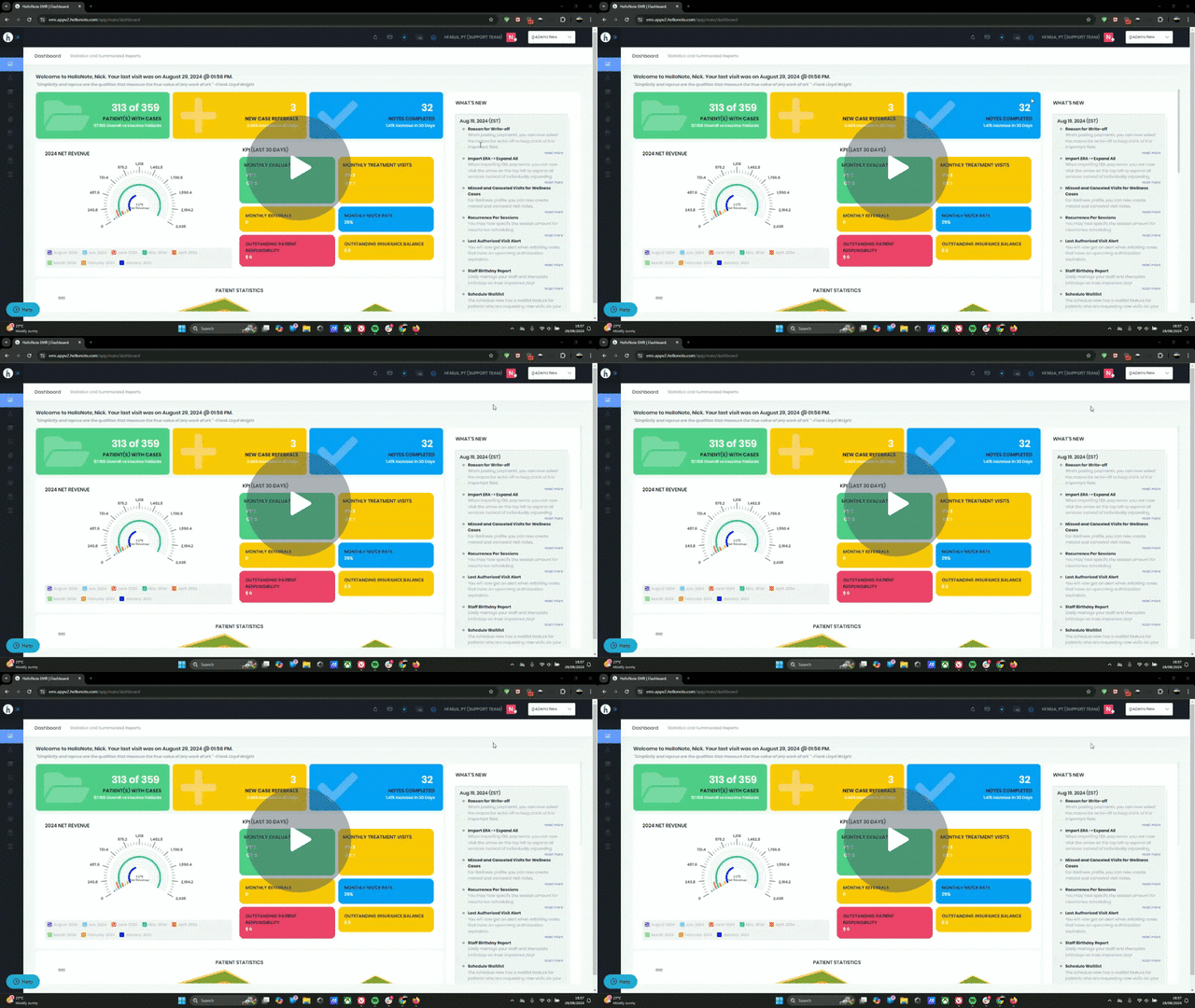
Here's a short tutorial on how to create and save your e-signature
https://www.loom.com/share/f5fcce6a3564478fa813dc027acfbc81?sid=de13b8b6-35ea-44d1-8294-c4fb0c3c52b1
Saving Your E-Signature on the System - Watch Video
Comments
1 comment
Unable to set up e-Signature for Hello-Note & was sent to Loom for set up! This was confusing for me.
Please sign in to leave a comment.