How do I allow microphone access for the scribe?
1. Open Windows Settings
- Press Windows + I or click Start > Settings.
2. Go to Privacy & Security
- In the left pane, select Privacy & security.
3. Open Microphone Settings
- Under App permissions, click Microphone.
4. Enable Microphone Access
Make sure these switches are turned On:
- Microphone access
- Let apps access your microphone
5. Allow Your Browser
- Scroll through the app list.
- Find your browser (Microsoft Edge, Google Chrome, etc.).
- Ensure its toggle is On.
6. Open Browser Settings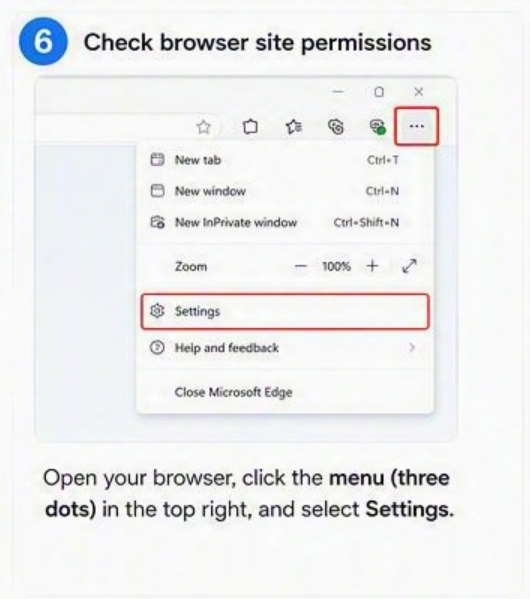
Microsoft Edge
- Click the ⋯ menu (top-right).
- Select Settings.
Google Chrome
- Click the ⋮ menu (top-right).
- Select Settings.
7. Check Site Permissions
Navigate to:
- Cookies and site permissions (Edge), or
- Privacy and security > Site Settings (Chrome)
Then select Microphone.
8. Allow Microphone Requests
Choose either:
- Ask first (recommended), or
- Allow sites to use your microphone
9. Reload the Website
- Return to the website.
- Refresh the page.
- When prompted, click Allow for microphone access.
Troubleshooting
If the microphone still doesn't work:
- Verify the correct microphone is selected in Windows.
- Close and reopen the browser.
- Restart the PC.
- Test the microphone in Settings > System > Sound > Input.
This process works for Windows 11 with Microsoft Edge, Google Chrome, and most Chromium-based browsers.
Comments
0 comments
Please sign in to leave a comment.